

Navigation
The navigation panel is located on the left side of the firmware interface and provides quick access to all main sections for managing the miner.
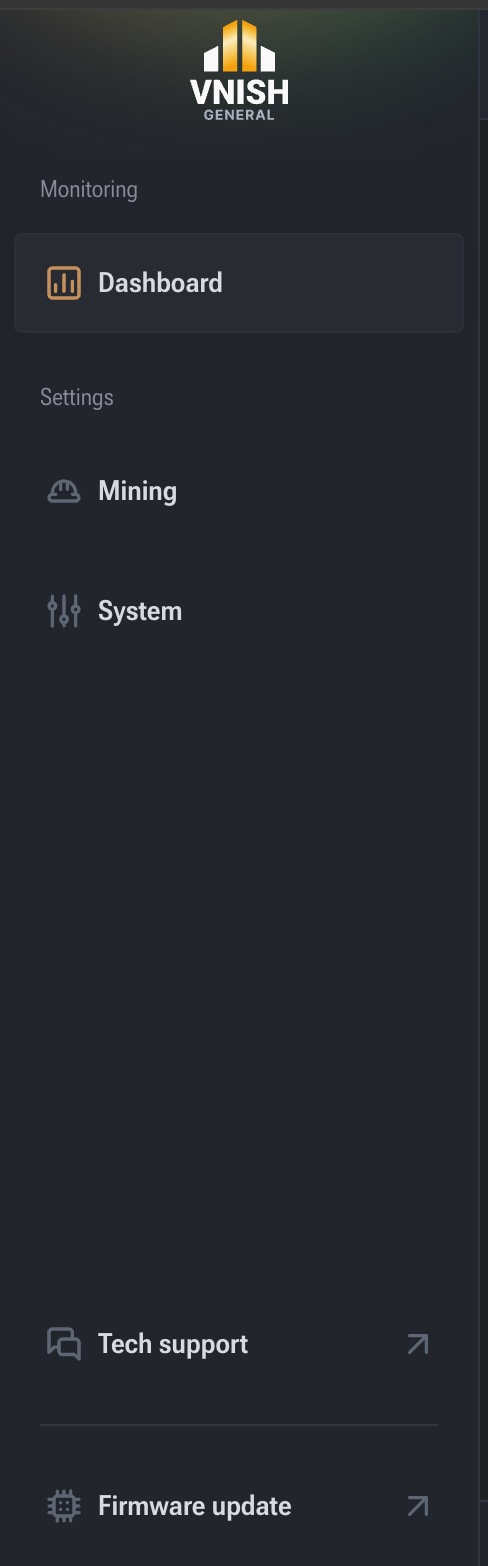
The navigation panel provides access to monitoring, mining management, system settings, and service tools.
Dashboard (Main Screen)
The main monitoring page for the device. Used for daily oversight of miner operations.
Displays:
- current mining status;
- total hashrate;
- chip and cooling system temperatures;
- fan speed and mode;
- power consumption and supply status;
- connected pools and their status;
- hash board and chip condition.
This is the operator’s primary screen.
Mining
Mining configuration section.
Here you can:
- set primary and backup pools;
- select operating mode:
- automatic,
- manual,
- immersion;
- configure frequencies, voltages, and profiles;
- manage autotuning parameters;
- adjust performance and stability modes.
This section controls the device’s computational operation.
System
Device controller system settings.
Includes:
- device name (hostname);
- network settings:
- DHCP,
- static IP,
- DNS;
- date and time;
- API access;
- device reboot;
- factory reset;
- export of logs and system information.
Used for administration and network integration.
Technical Support
Service section for diagnostics and providing information to support.
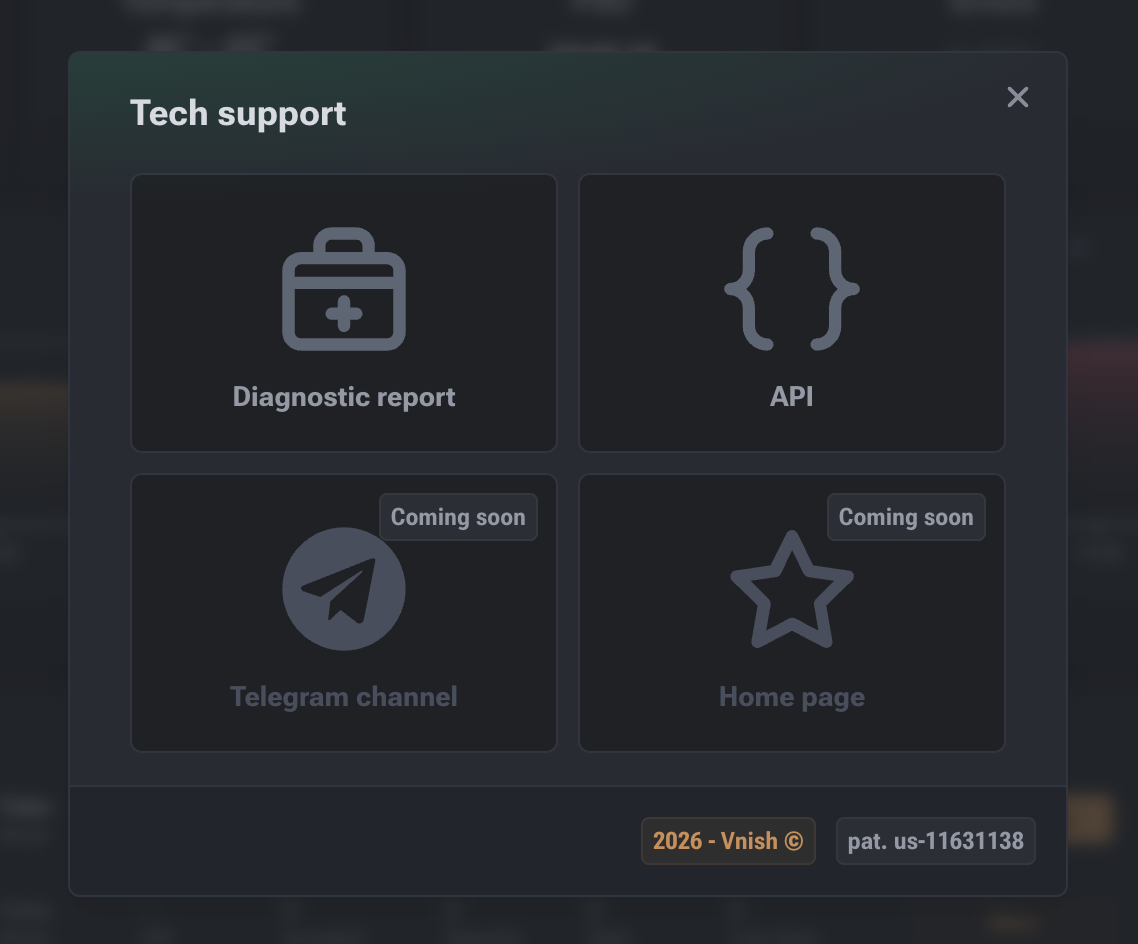
Diagnostic Report
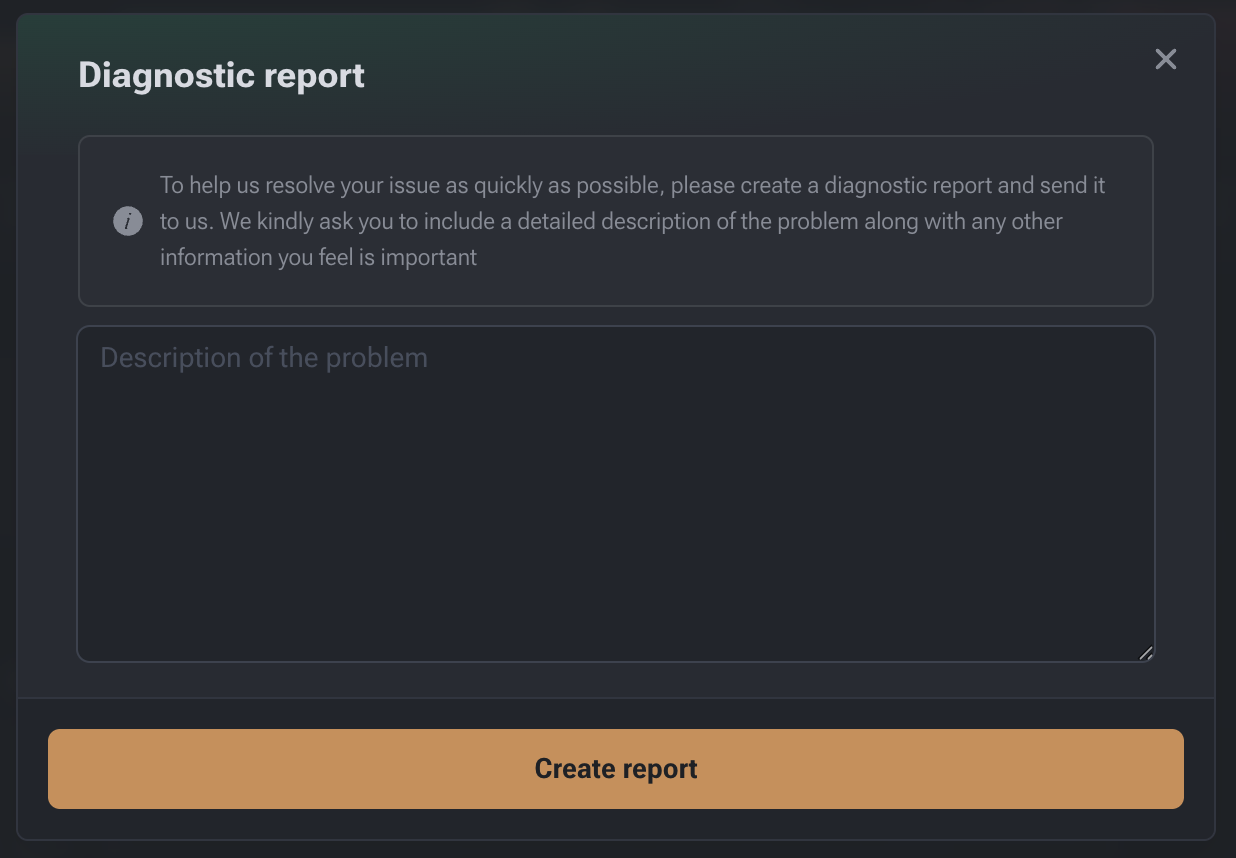
Tool for generating a complete technical report of the device.
The report includes:
- system and mining logs;
- hash board and chip status;
- cooling and power parameters;
- pool information and current settings.
Used when contacting technical support.
API
Access section for the device’s external API.
Allows:
- integration with third-party monitoring systems;
- automation of management;
- remote data collection.
Intended for advanced integration scenarios.
Firmware Update Center
Firmware update section of the interface.
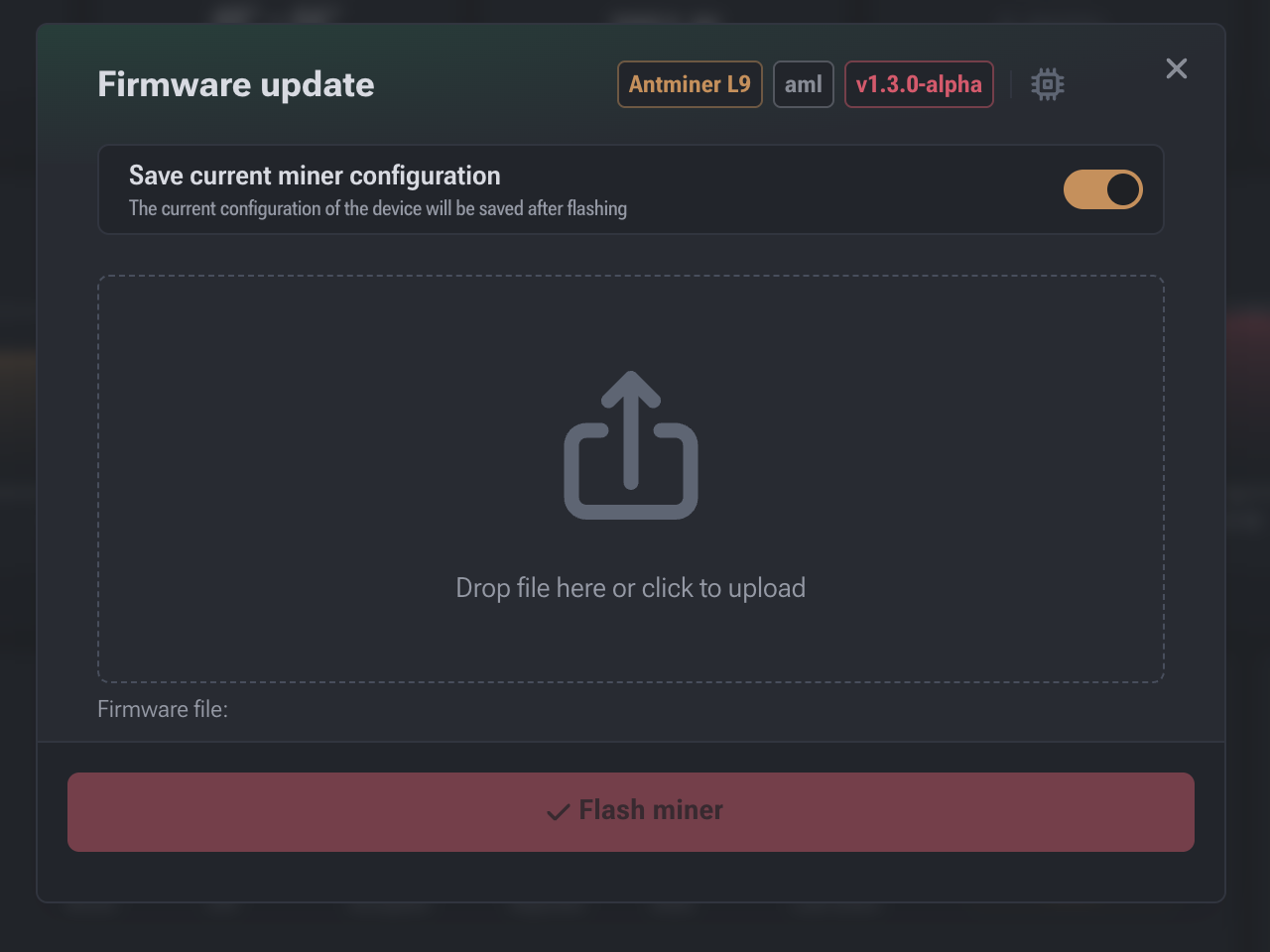
Device Information (Top Panel)
Top panel displays:
- Device model (e.g., Antminer S19 Pro Hydro);
- Controller type (e.g., Xilinx);
- Current firmware version (e.g., v1.2.2-alpha).
Save Current Settings
The “Save Current Settings” toggle:
- stores pools, profiles, frequencies, voltages, network settings, and other parameters;
- automatically restores them after firmware update.
Recommended to leave enabled during planned updates.
Firmware Upload Area
Supported file formats:
.tar.gz.img
Files can be dragged into the upload area or selected manually.
Once uploaded, the update button becomes active.
“Update Firmware” Button
- inactive until a file is selected;
- activates after file selection;
- starts the firmware update process;
- the device automatically reboots during the update.